

API Keys Setup#
There is a one-time setup of API-keys required to use Nominal clients. There are 2 steps:
1. Create the config file.#
Save it as %USERPROFILE%\.config\nominal\config.yml:
version: 2
profiles:
  default:
    token: API_KEY
    base_url: BASE_URL
    workspace_rid: WORKSPACE_RID
Save it as ~/.config/nominal/config.yml:
version: 2
profiles:
  default:
    token: API_KEY
    base_url: BASE_URL
    workspace_rid: WORKSPACE_RID
Save it as ~/.config/nominal/config.yml:
version: 2
profiles:
  default:
    token: API_KEY
    base_url: BASE_URL
    workspace_rid: WORKSPACE_RID
The file holds your API key in plain text, so keep it out of version control and shared folders!
2. Fill in your KEYS#
Next, visit your API keys page in the cloud Nominal app, and copy three values to store in your config file.
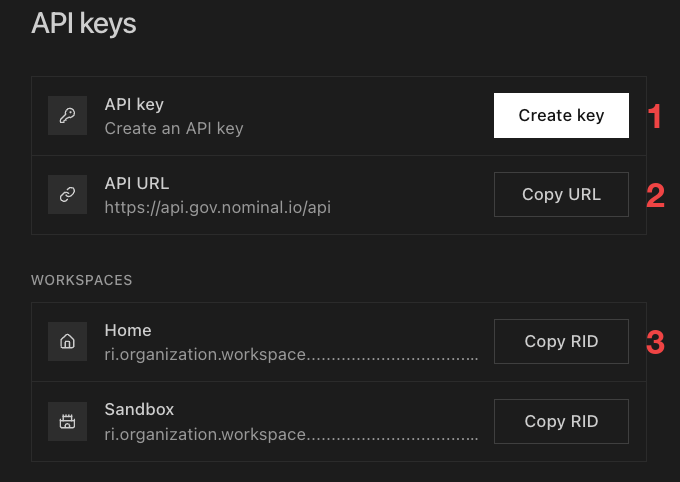
There are 3 values:
API key: Click CREATE KEY, give the key a name, set an expiration, and click GENERATE KEY. Note, this is only shown once.
Base URL: Find API URL and click COPY URL.
Workspace RID: Find your workspace and click COPY RID.
Details#
Profiles
Each key under profiles (default in the template above) is a profile name, and you can add more profiles to connect to other workspaces or instances.
Store credentials with command line tools
Nominal provides two command line tools, a Rust-based one, nomctl, and a Python-based one. Use nomctl unless you already use the Python client or IT restrictions make the Python CLI easier to install.
Rust: nomctl
To install, run:
In PowerShell:
irm https://raw.githubusercontent.com/nominal-io/nominal-client-rs/main/scripts/install.ps1 | iex
The installer also adds nomctl to your PATH.
curl -fsSL https://raw.githubusercontent.com/nominal-io/nominal-client-rs/main/scripts/install.sh | sh
If you get an error that nomctl is not found when running the steps below, either call ~/.local/bin/nomctl directly or add ~/.local/bin to your PATH and open a new terminal:
echo 'export PATH="$HOME/.local/bin:$PATH"' >> ~/.bashrc
curl -fsSL https://raw.githubusercontent.com/nominal-io/nominal-client-rs/main/scripts/install.sh | sh
If you get an error that nomctl is not found when running the steps below, either call ~/.local/bin/nomctl directly or add ~/.local/bin to your PATH and open a new terminal:
echo 'export PATH="$HOME/.local/bin:$PATH"' >> ~/.zshrc
Finally, to create the credential file using the three credentials collected above, run:
nomctl config profile add default -t <1:api-key> -u <2:base-url> -w <3:workspace-rid>
To check the profile was saved:
nomctl config profile list
Tip
nomctl config init creates the profile interactively instead, and lets you pick your workspace from a list rather than pasting its RID.
Python: nominal.cli
To install, run pip install nominal. If your system Python blocks pip install, as on some Linux distributions and with Homebrew’s Python on macOS, install into a virtual environment, or use uv tool install nominal or pipx install nominal and run nom in place of python -m nominal.cli below.
Then, using the three credentials collected above, run the first command below. The second checks the profile was saved.
python -m nominal.cli config profile add default -t <1:api-key> -u <2:base-url> -w <3:workspace-rid>
python -m nominal.cli config profile list
python3 -m nominal.cli config profile add default -t <1:api-key> -u <2:base-url> -w <3:workspace-rid>
python3 -m nominal.cli config profile list
python3 -m nominal.cli config profile add default -t <1:api-key> -u <2:base-url> -w <3:workspace-rid>
python3 -m nominal.cli config profile list
This page covers how to secure and authorize requests to Nominal from the Python client and the nom CLI. If your scripts use the legacy API, using import nominal as nm, see Migration to the Profile API.